Typing an address and viewing a page seems like a single action, but it involves several steps: interpreting the URL, discovering the server, creating connections, verifying identity, sending a request, receiving files, and assembling the interface. Each phase can fail in a different way.
Understanding the path helps diagnose problems without automatically blaming “the internet”. It also shows why a page might open without images, load slowly even with good Wi-Fi, or display an alert before showing content.
The URL Tells Where and What to Order#
An address like https://example.com/guia contains scheme, domain and path. The scheme indicates how to talk; the domain identifies the service in a human-readable form; the path points to a resource. Parameters and fragments can add state or link to a part of the page.
Read the domain from right to left for main points and be wary of misleading variations. The what a domain reveals article explains registration and structure. A padlock next to a fake domain protects the connection to the fake domain.
DNS Finds a Network Address#
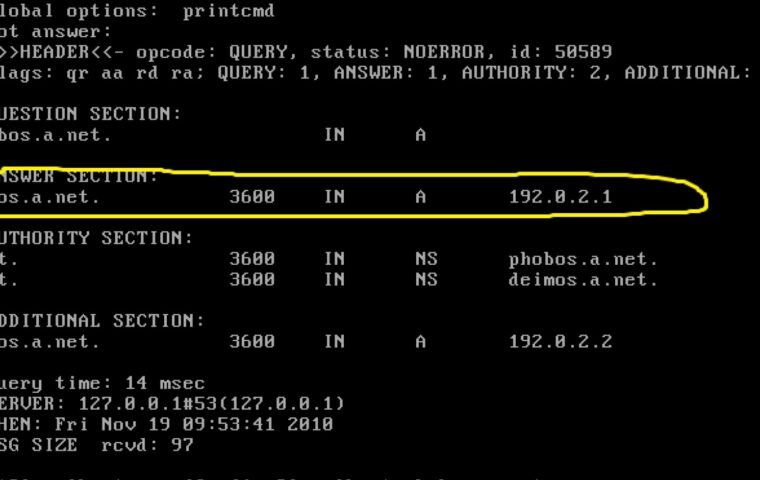
Before contacting the server, the device needs to translate the name into an IP address. It queries DNS caches and resolvers. The response may point to different addresses depending on region, load and protocol version.
MDN describes DNS as the catalog used before the request. To investigate specific failures, see what DNS does. Changing DNS does not improve all types of slowdowns and should be tested without mixing other changes.
Connection is created in layers#
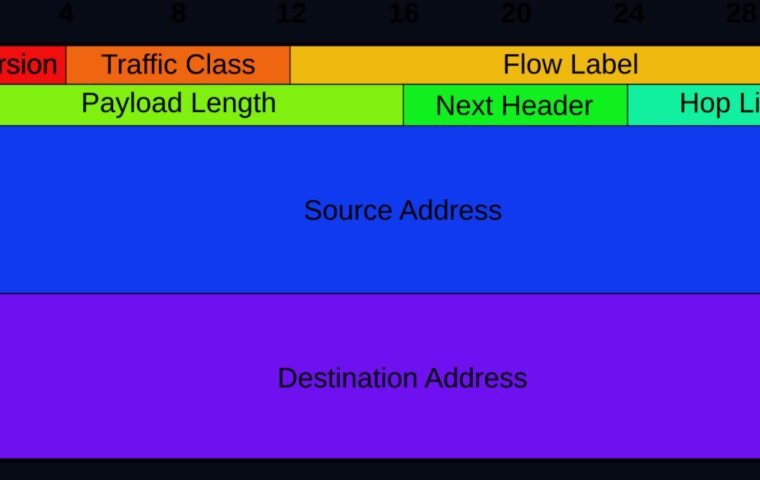
With the address in hand, the system forwards packets through the local network, provider and intermediate routers. Transport protocols organize delivery and congestion. Current technologies may use TCP or alternatives over UDP, depending on the browser and server.
The address can be IPv4 or IPv6. The guide on why the internet needed IPv6 details this transition. The existence of two versions allows different paths; A broken configuration can make a site slow to try the alternative.
HTTPS Verifies Identity and Protects Traffic#
In HTTPS, the browser and server negotiate encryption and the server presents a certificate for the domain. The browser checks validity, chain of trust and name correspondence. If the check fails, it shows an alert because it cannot guarantee who you are talking to.
Don’t ignore alerts on login, payment or unknown network. Wrong date on device, captive portal, corporate inspection, and incorrect website configuration are possible causes. Analysis of HTTPS and padlock separates connection protection and content honesty.
HTTP Organizes Request and Response#
The browser sends a method, headers, and other information. The server responds with a status code, headers, and content. “200” indicates success; redirects point to another address; “404” says the resource was not found; “500” errors indicate server-side failure.
The MDN documentation brings together HTTP concepts and references. These codes do not measure speed. A quick error response may arrive before a successful complex page.
A Page Is Made Of Many Resources#
The first HTML document describes structure and references stylesheets, scripts, images, fonts, and data. The browser parses the HTML, creates a representation of the elements, applies CSS, and executes JavaScript. New requests may occur as the page appears.
Forms can load additional services to contain automation. The history of CAPTCHA explains why these challenges have moved from distorted letters to risk assessments.
Therefore, text may appear before the photo or a button may wait for a script. If a blocker blocks a necessary domain, part of the page fails. Only open browser tools if you know how to interpret them; First test update, clean window and another browser without deleting important data.
Cache Prevents Downloading Everything Again#
Browsers save resources to reuse them. The server informs how long a version can be considered recent and can validate whether there has been a change. This saves data and speeds up visits, but inconsistent copy can make it look stale.
Reloading bypassing part of the cache is a one-off test. Deleting all cookies may end sessions without fixing broken images. Use the cache, cookies and history guide to choose cleaning according to the symptom.
Distribution Networks Bring Content Closer#
Websites can use content delivery networks to maintain copies at multiple points. DNS and other mechanisms direct the visitor to nearby or available infrastructure. This reduces distance and distributes load, but also adds layers of caching and configuration.
An outage at a cloud provider or CDN can affect many sites at the same time. Before changing your router, test different services and consult the official channel. If just one domain fails on multiple devices, the cause probably isn’t the Wi-Fi on a single device.
A Diagnostic Guide Per Stage#
Check first if other websites open and if other devices have the same problem. Note the exact message: name not found suggests DNS; certificate alert points to identity or clock; HTTP error came from the server; Partial loading may involve blocked resource.
Test another network, such as mobile data, without changing permanent settings. Restart application and device when appropriate. Record time, address and capture without personal data. This evidence makes support more efficient than just saying “it doesn’t work.”
Fun Fact: The Web Uses The Internet, But It’s Not The Entire Internet#
E-mail, calls, games and synchronization also use the network infrastructure, with their own protocols. The Web is the system of documents and applications accessed mainly through browsers and HTTP. The article about the difference between internet and web tells how the two stories were connected.
This distinction appears in the diagnosis: an application can work while pages fail, or the browser can open websites while a game does not connect. The internet is not a single service with a single status light.
Conclusion#
A page arrives on the screen through a chain: URL, DNS, connection, HTTPS, HTTP, resources, rendering and cache. The step indicated by the message helps you choose the next test.
Change one variable at a time and preserve evidence. With this map, it is easier to separate local problem, name failure, security alert, server error and blocked resource.
Frequently Asked Questions#
Why does the website open on cell phones and not on Wi-Fi?#
Networks can use different DNS, IPv4, IPv6, filters and routes. Compare without changing various settings and check if other devices repeat the problem.
Does a 404 Error Mean the Internet is Down?#
No. The server responded that it did not find that resource. Check the address and look for the website’s home page.
Why Does the Page Open Without Images?#
Images may come from another address, be blocked, fail to cache, or have been removed. Test a top-up and see if the problem occurs on another network or browser.
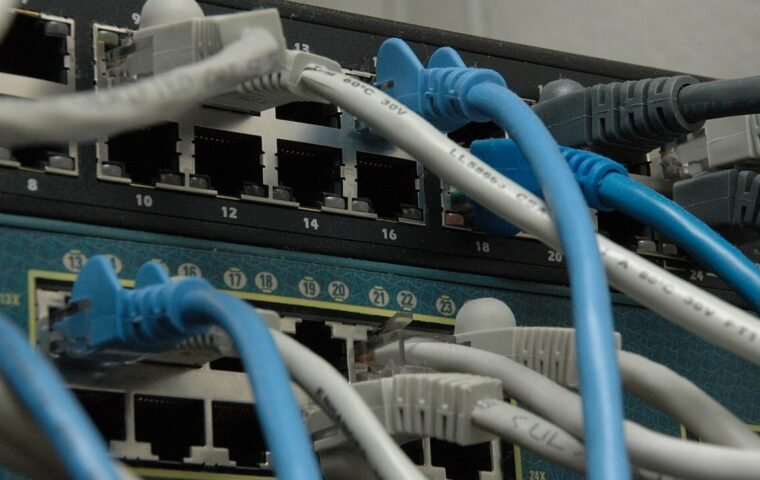
Featured image: Photo: Shixart1985 — CC BY 2.0, via Wikimedia Commons. Cropped for the featured image. Source and attribution.