An Ethernet cable can keep working while negotiating below the expected speed. The status “connected” therefore confirms a link, not its capacity or stability.
Read the negotiated speed#
Open the adapter status and record whether the link negotiated at 100 Mbps, 1 Gbps, 2.5 Gbps, or another rate. Application throughput will be lower than this link rate because protocols add overhead.
For this step, write down what you expected, what actually happened, and whether the result was repeatable. A single successful attempt can be useful, but it is not yet a stable conclusion. Repeat the smallest safe test before moving to the next layer.
Inspect the complete path#
List the computer adapter, cable category and condition, wall jack, switch, and router port. The connection normally falls to the fastest mode supported reliably by every component in that path.
For this step, write down what you expected, what actually happened, and whether the result was repeatable. A single successful attempt can be useful, but it is not yet a stable conclusion. Repeat the smallest safe test before moving to the next layer.
Swap one component#
Use a short known-good cable and a second known-good port. If the link returns to the expected rate, reintroduce the wall run or switch separately. Avoid replacing several components at once.
For this step, write down what you expected, what actually happened, and whether the result was repeatable. A single successful attempt can be useful, but it is not yet a stable conclusion. Repeat the smallest safe test before moving to the next layer.
Compare local and internet transfer#
A transfer between two capable wired devices tests the local path more directly than an internet test. If local performance is healthy but internet performance is not, continue at the router, modem, or provider layer.
For this step, write down what you expected, what actually happened, and whether the result was repeatable. A single successful attempt can be useful, but it is not yet a stable conclusion. Repeat the smallest safe test before moving to the next layer.
How to keep the test controlled#
A home network crosses several administrative boundaries: the device, local link, router, access equipment, provider, and destination. A result should identify the last layer known to work. Keep local tests separate from internet tests, note whether Ethernet and Wi-Fi agree, and avoid factory resets until settings and credentials are backed up. If equipment belongs to the provider, confirm which changes you are allowed to make.
Use a simple worksheet with five columns: time, starting condition, action, observable result, and rollback status. Attach screenshots only when they show the relevant setting or error. This record prevents circular troubleshooting and gives support a concise history of what has already been ruled out.
Decision checkpoint#
Replace a cable or port when the fault follows that component. Upgrade equipment only when its documented interface speed is the verified bottleneck.
What this guide does not prove#
Displayed link rate is not a throughput promise. Storage speed, CPU load, protocol overhead, and the other endpoint can all limit a transfer.
Document the result#
Keep a short record with the date, device and software versions, original setting, change, result, and whether you restored it. Remove account names, addresses, serial numbers, public IP addresses, and other personal data before sharing screenshots with a forum or support team.
Related Portal Tech field guides#
- Slow Internet or Slow Wi-Fi? A Test That Isolates the Bottleneck
- Router Placement: A Room-by-Room Measurement Plan
References#
Questions readers usually ask#
Should I change several settings to save time?#
No. Multiple simultaneous changes make the result difficult to interpret and can create a second problem. Preserve a baseline and retest after each meaningful change.
When should I contact support?#
Contact the responsible provider or manufacturer when the fault is reproducible, the documented safe steps are exhausted, the equipment reports a safety warning, or the required action exceeds your access or experience.
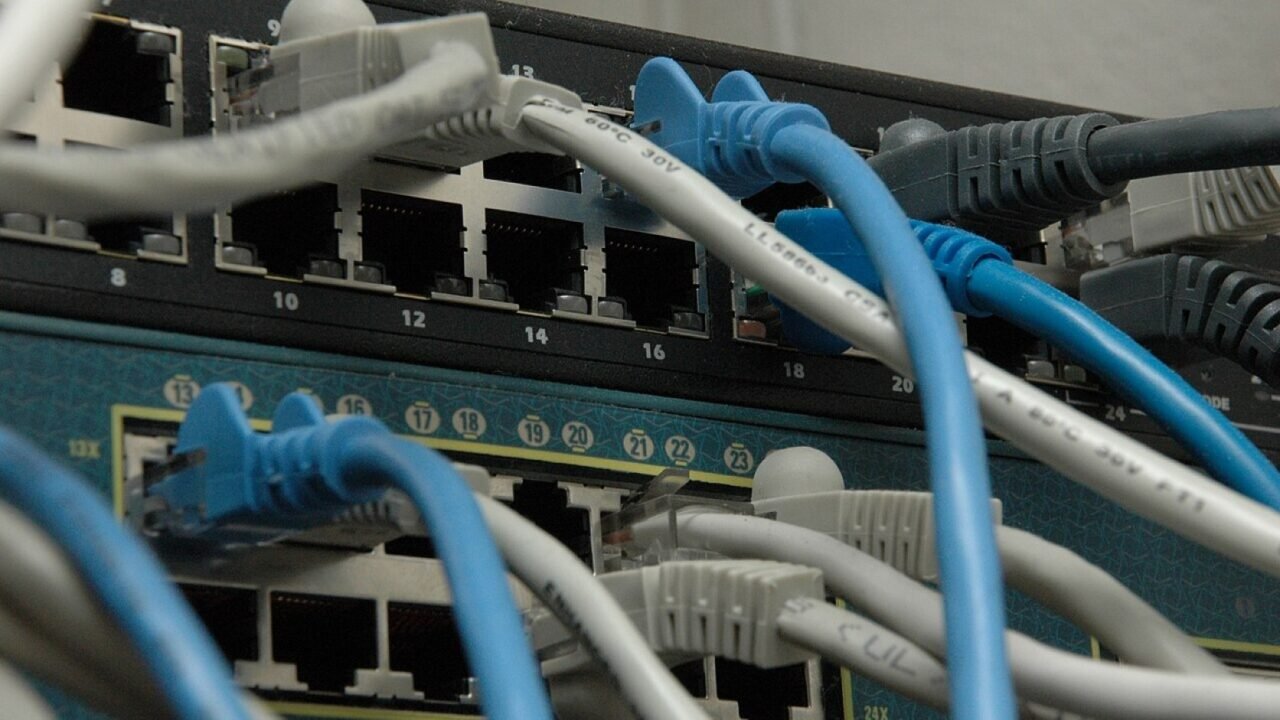
Featured image: Network switches.jpg — CC BY-SA 3.0, via Wikimedia Commons. Cropped for this article. Source and licence details.