Storage health data is useful for triage, not prediction. When the operating system reports a critical warning, the first task is protecting irreplaceable data.
Create an independent backup#
Copy important files to a separate destination and verify that representative files open. Do not begin a benchmark, firmware update, or full-surface scan before the backup if the drive is already reporting a warning.
For this step, write down what you expected, what actually happened, and whether the result was repeatable. A single successful attempt can be useful, but it is not yet a stable conclusion. Repeat the smallest safe test before moving to the next layer.
Read the actual warning#
Windows may report low spare capacity, degraded reliability, or a read-only state for supported NVMe devices. Capture the wording, model, firmware, temperature, and estimated life rather than relying on a single generic app score.
For this step, write down what you expected, what actually happened, and whether the result was repeatable. A single successful attempt can be useful, but it is not yet a stable conclusion. Repeat the smallest safe test before moving to the next layer.
Check the surrounding system#
Confirm available space, temperatures, power stability, cables for SATA devices, and event logs. A slow computer can result from memory pressure or background work even when storage is healthy.
For this step, write down what you expected, what actually happened, and whether the result was repeatable. A single successful attempt can be useful, but it is not yet a stable conclusion. Repeat the smallest safe test before moving to the next layer.
Plan replacement and recovery#
Prepare installation media, encryption recovery keys, application credentials, and a tested backup. Keep the suspect drive disconnected after replacement until you know whether more recovery attempts are necessary.
For this step, write down what you expected, what actually happened, and whether the result was repeatable. A single successful attempt can be useful, but it is not yet a stable conclusion. Repeat the smallest safe test before moving to the next layer.
How to keep the test controlled#
Protect data and personal safety before chasing performance. Back up irreplaceable files, disconnect power when the manufacturer requires it, and stop if a battery is swollen, liquid is present, or the procedure requires tools and training you do not have. Use official diagnostics first and record model, firmware, operating-system version, power mode, and the workload that reproduces the symptom.
Use a simple worksheet with five columns: time, starting condition, action, observable result, and rollback status. Attach screenshots only when they show the relevant setting or error. This record prevents circular troubleshooting and gives support a concise history of what has already been ruled out.
Decision checkpoint#
Replace promptly when the operating system or manufacturer reports degraded reliability, especially when symptoms accompany the warning. Warranty terms may require the captured diagnostics.
What this guide does not prove#
Windows does not expose the same health detail for every SATA SSD or hard drive. A normal status never replaces backups because sudden failures remain possible.
Document the result#
Keep a short record with the date, device and software versions, original setting, change, result, and whether you restored it. Remove account names, addresses, serial numbers, public IP addresses, and other personal data before sharing screenshots with a forum or support team.
Related Portal Tech field guides#
References#
Questions readers usually ask#
Should I change several settings to save time?#
No. Multiple simultaneous changes make the result difficult to interpret and can create a second problem. Preserve a baseline and retest after each meaningful change.
When should I contact support?#
Contact the responsible provider or manufacturer when the fault is reproducible, the documented safe steps are exhausted, the equipment reports a safety warning, or the required action exceeds your access or experience.
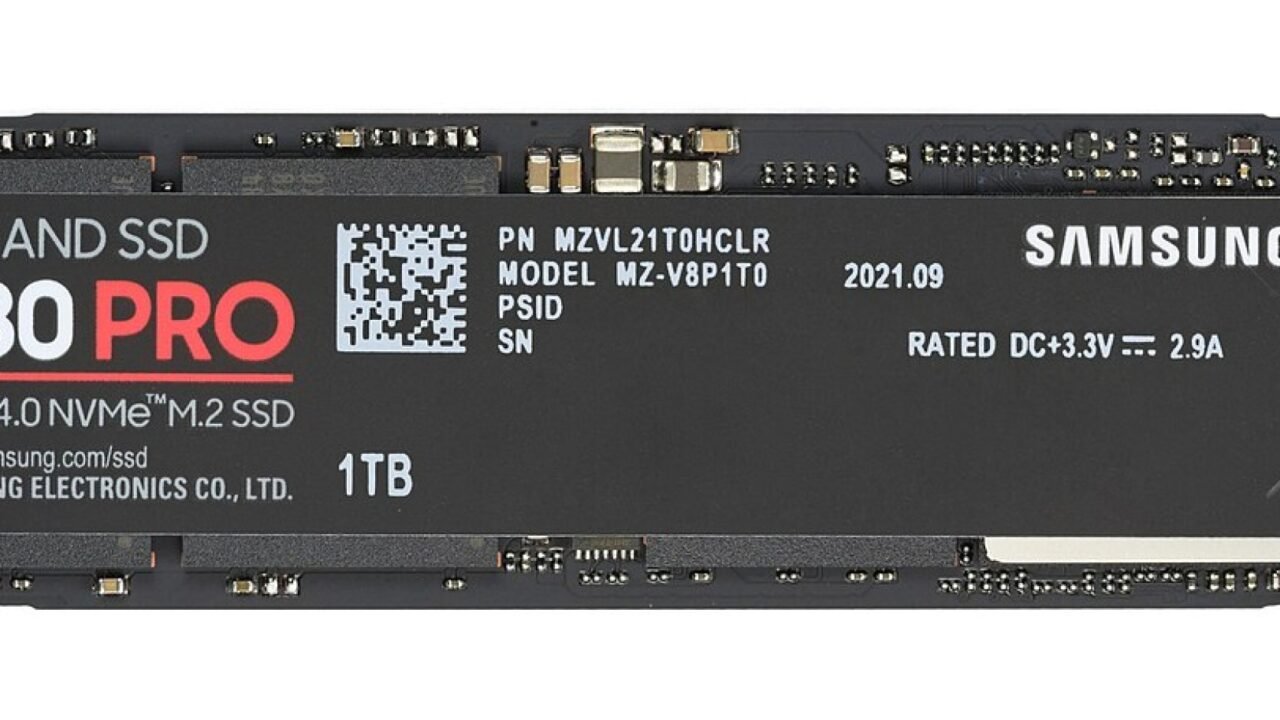
Featured image: Samsung 980 PRO PCIe 4.0 NVMe SSD 1TB-top PNr°0915.jpg — CC BY-SA 4.0, via Wikimedia Commons. Cropped for this article. Source and licence details.