Heat under load is normal; throttling, shutdowns, swelling, or a sudden change in fan behavior are signals to investigate. Start with observations that do not require opening the case.
Record the conditions#
Note the application, power mode, charger, surface, ambient temperature, fan behavior, and time until the symptom. Check Task Manager or Activity Monitor for a process holding CPU or GPU load.
For this step, write down what you expected, what actually happened, and whether the result was repeatable. A single successful attempt can be useful, but it is not yet a stable conclusion. Repeat the smallest safe test before moving to the next layer.
Restore external airflow#
Place the laptop on a hard surface and clear visible vents without pushing objects inside. Remove docks or cases that obstruct intake. Compare the same workload after the device has cooled.
For this step, write down what you expected, what actually happened, and whether the result was repeatable. A single successful attempt can be useful, but it is not yet a stable conclusion. Repeat the smallest safe test before moving to the next layer.
Update with a rollback plan#
Install supported firmware, system, and graphics updates from the manufacturer. Change one layer at a time and preserve recovery options. Avoid utilities that promise to disable thermal protection.
For this step, write down what you expected, what actually happened, and whether the result was repeatable. A single successful attempt can be useful, but it is not yet a stable conclusion. Repeat the smallest safe test before moving to the next layer.
Know when to stop#
Power down and seek qualified service if the case separates, the battery swells, liquid entered the device, a burning smell appears, or the fan makes mechanical noise. Do not press or puncture a swollen battery.
For this step, write down what you expected, what actually happened, and whether the result was repeatable. A single successful attempt can be useful, but it is not yet a stable conclusion. Repeat the smallest safe test before moving to the next layer.
How to keep the test controlled#
Protect data and personal safety before chasing performance. Back up irreplaceable files, disconnect power when the manufacturer requires it, and stop if a battery is swollen, liquid is present, or the procedure requires tools and training you do not have. Use official diagnostics first and record model, firmware, operating-system version, power mode, and the workload that reproduces the symptom.
Use a simple worksheet with five columns: time, starting condition, action, observable result, and rollback status. Attach screenshots only when they show the relevant setting or error. This record prevents circular troubleshooting and gives support a concise history of what has already been ruled out.
Decision checkpoint#
Cleaning or thermal service becomes reasonable when the fault remains reproducible after software and airflow checks and the manufacturer documents safe service access.
What this guide does not prove#
Software temperature readings vary by sensor and model. A low reading from one sensor does not rule out a local hot spot or battery problem.
Document the result#
Keep a short record with the date, device and software versions, original setting, change, result, and whether you restored it. Remove account names, addresses, serial numbers, public IP addresses, and other personal data before sharing screenshots with a forum or support team.
Related Portal Tech field guides#
- SSD Health Warnings: Back Up First, Diagnose Second
- Phone Battery Drain: Build a 24-Hour Baseline Before Resetting
References#
Questions readers usually ask#
Should I change several settings to save time?#
No. Multiple simultaneous changes make the result difficult to interpret and can create a second problem. Preserve a baseline and retest after each meaningful change.
When should I contact support?#
Contact the responsible provider or manufacturer when the fault is reproducible, the documented safe steps are exhausted, the equipment reports a safety warning, or the required action exceeds your access or experience.
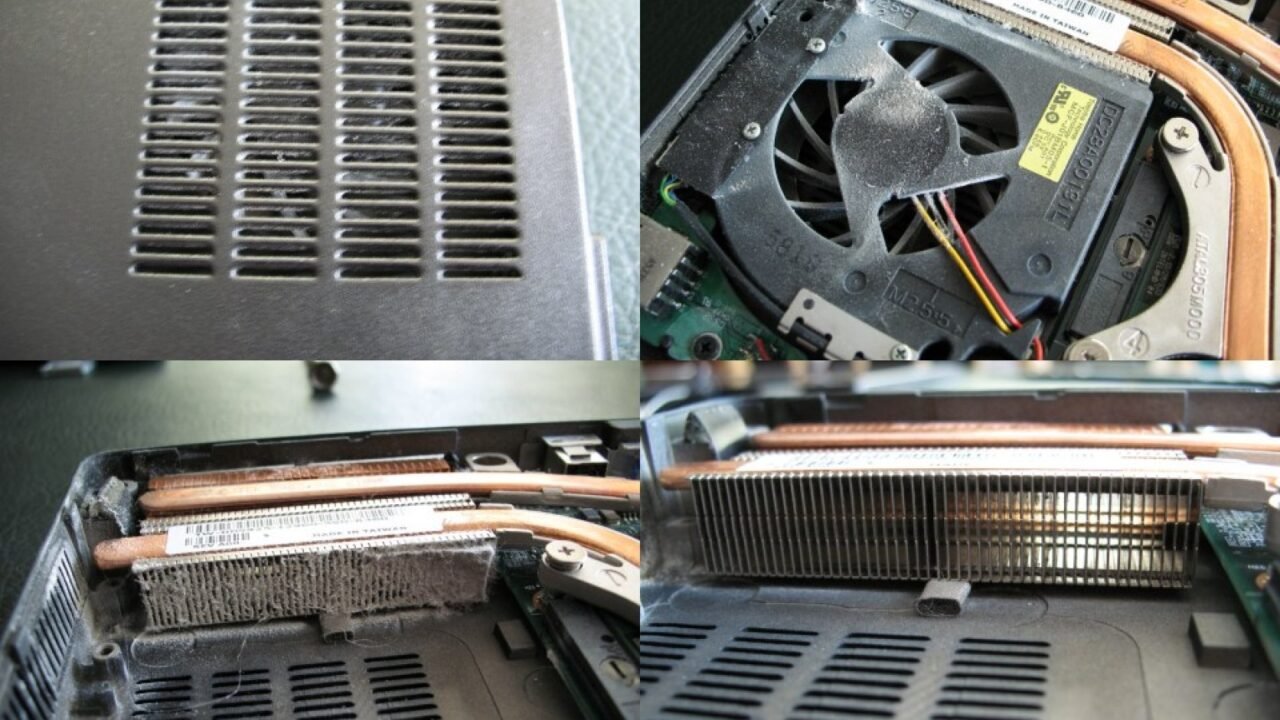
Featured image: Laptop overheating due to dust-clogged internal heatsinks in 2.5 year old laptop.jpg — CC BY-SA 3.0, via Wikimedia Commons. Cropped for this article. Source and licence details.